Manage an NFT Marketplace #
This guide explains how market creators and administrators can find a market, edit its profile and trading settings, pause activity, transfer administrator access, and migrate to a newer eligible market.
Every management action requires the administrator wallet and a network transaction fee. Verify the website, network, market address, and connected wallet before approving anything.
View the live demo: Open the BNB Chain NFT marketplace demo to see how project details, active listings, sales records, and the public marketplace appear to users.
1. Find and open a market #
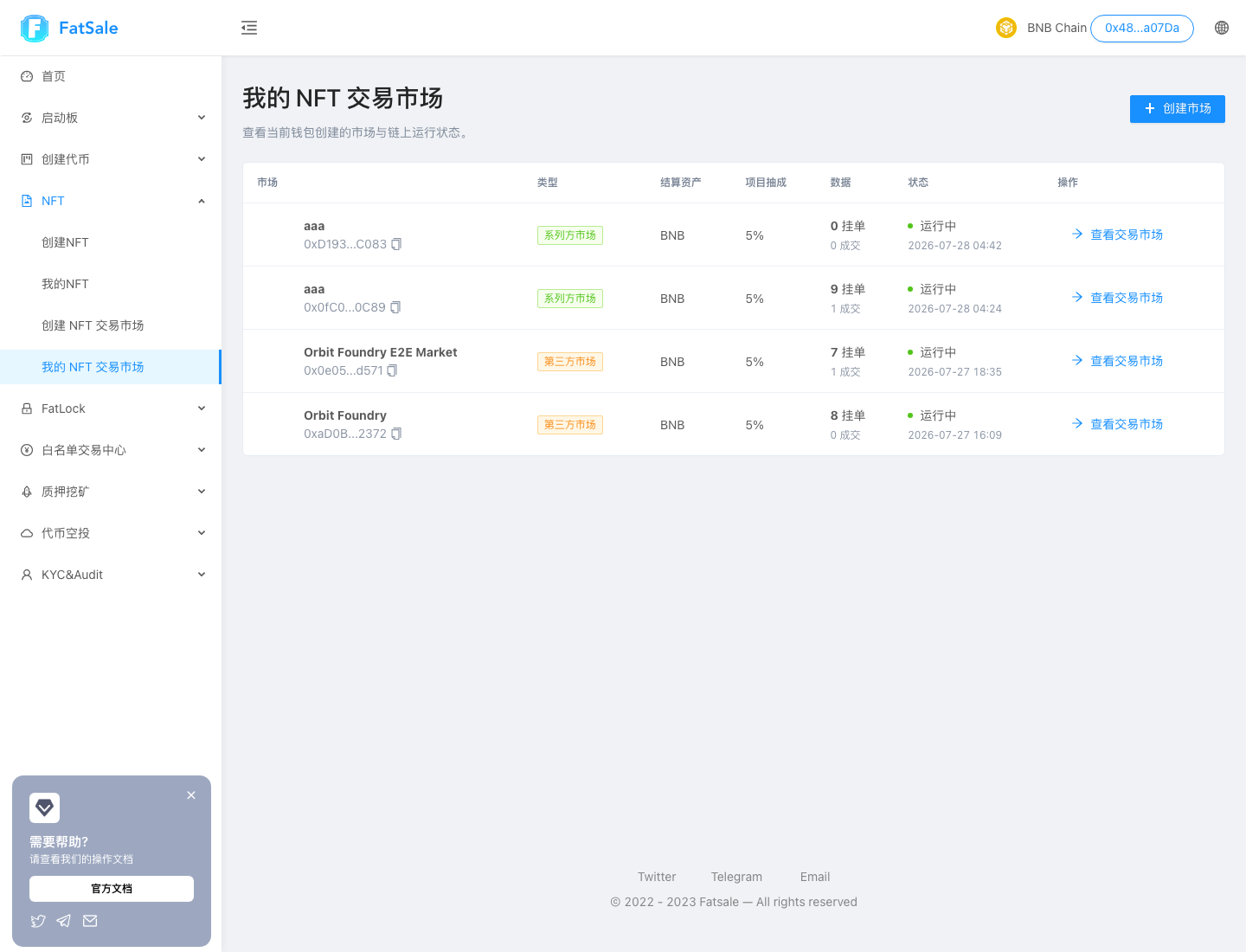
The list is ordered from newest to oldest and shows:
- market name and address;
- collection or third-party market status;
- settlement asset;
- project commission;
- listing and sale counts;
- running, paused, migrating, or retired status;
- creation time and the View marketplace action.
The list is paginated. Changing the wallet or network changes which markets are displayed.
Collection market vs third-party market #
- Collection market: the market administrator also controls the NFT collection.
- Third-party market: the market administrator does not control the NFT collection.
Third-party does not automatically mean unsafe, but official projects should always publish the full NFT and market addresses.
2. Understand the marketplace page #
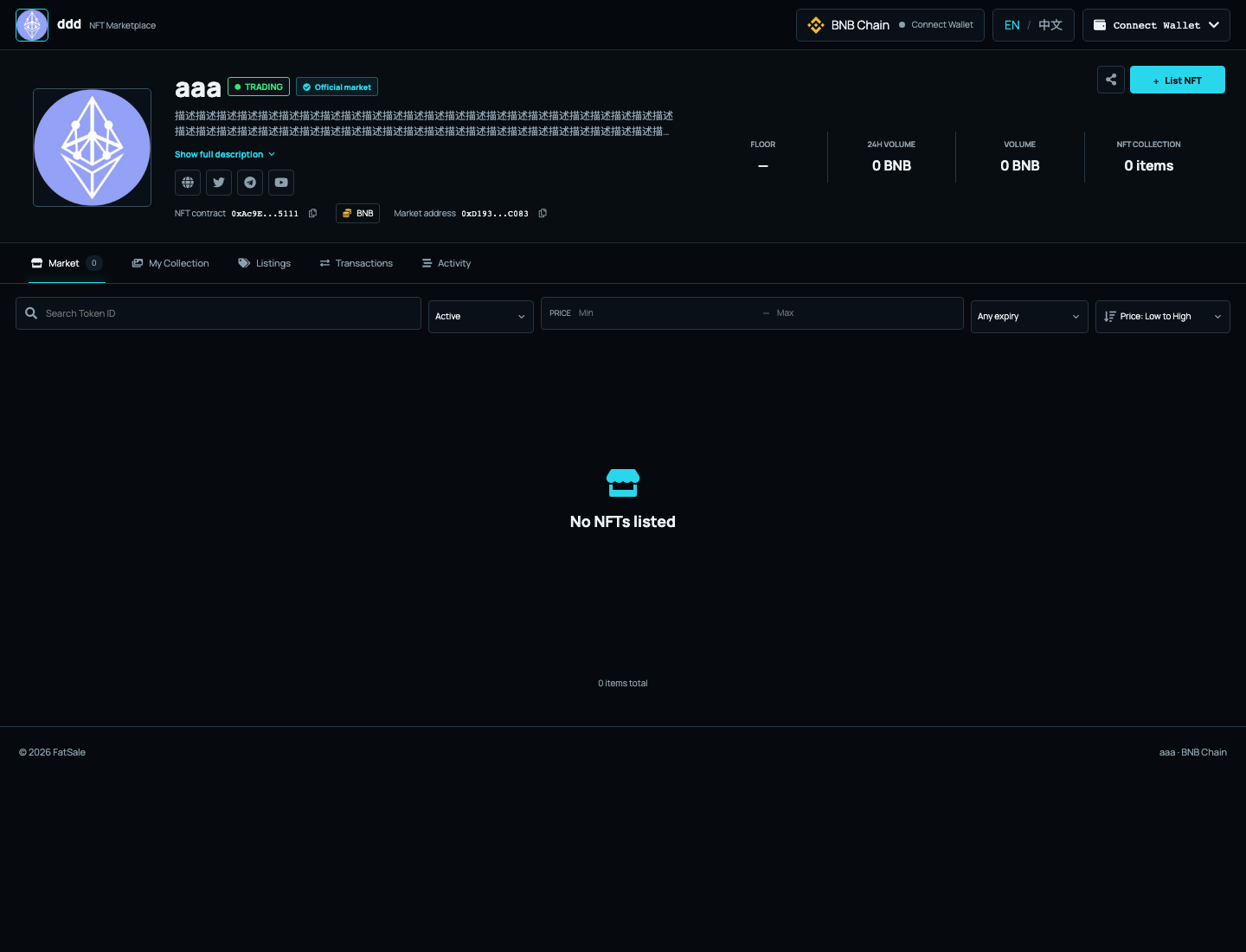
The marketplace includes:
- project logo, name, description, and social links;
- live, paused, migrating, or retired status;
- floor price, volume, and listed item counts;
- active market listings;
- NFTs held by the connected wallet;
- listings created by the connected wallet;
- completed sales;
- market activity;
- an administrator tab visible only to an authorized wallet.
On mobile, the administrator entry appears in the bottom tab bar. Regular users do not see it.
3. Open the administrator panel #
- Open the correct market URL.
- Click Connect wallet.
- Choose MetaMask, Trust Wallet, Binance Wallet, OKX Wallet, or another compatible wallet shown by the page.
- Confirm that the wallet is on the market network.
- Connect the administrator wallet.
- Open the Administrator tab.
If a wallet is connected but the tab is missing, it is not the administrator or a pending transfer has not yet been accepted.
4. Change the default settlement asset #
Choose either:
- the network native coin, such as BNB;
- an ERC-20 token whose contract address is recognized by the page.
The new asset applies to new listings only. Existing listings keep the currency selected when they were created.
Before saving:
- confirm the token is on the same network;
- avoid tokens with transfer taxes or unpredictable received amounts;
- create one test listing after the change;
- verify the symbol and price displayed on the NFT card.
5. Edit the project profile #
You can update the logo, project name, description, website, Twitter, Telegram, and YouTube links.
Use a clear square logo. Descriptions preserve line breaks. Social links are presented as icons that open the supplied URLs.
After saving, allow a short time for the page to refresh. Do not repeatedly submit the same change while the first transaction is still pending.
6. Change project commission and recipient #
Project commission supports up to two decimal places and cannot exceed 20%. The recipient must be a valid wallet controlled by the project.
Example:
- at
5%, a new listing sold for2 BNBproduces0.1 BNBproject commission; - after changing the fee to
3%, new listings use3%; - listings that existed before the change keep
5%.
This prevents a seller’s fee terms from changing after listing. Sellers must cancel and create a new listing to use updated settings.
7. Change royalty settings #
The administrator can turn royalty off, use the NFT’s available royalty option, or configure a custom royalty and wallet. Custom royalty cannot exceed 15%.
Royalty changes also apply only to new listings. Review the combined effect of commission and royalty before saving.
8. Pause and resume the market #
Pause the market when you need to correct settings, investigate suspicious activity, prepare a migration, or temporarily stop trading.
While paused:
- users cannot create new listings;
- buyers cannot purchase;
- sellers can still cancel their listings and recover their NFTs.
After resolving the issue, review the currency, fees, wallets, and project profile, then select Resume market.
9. Transfer administrator access #
Administrator transfer requires both wallets:
- the current administrator enters the new wallet and starts the transfer;
- the new wallet opens the market on the correct network;
- the page shows that administrator access is waiting to be accepted;
- the new wallet accepts;
- the old wallet loses administrator access after acceptance.
This protects the market from an immediate loss of control when an address is entered incorrectly. Still, always paste and verify the full address.
Never transfer administrator access to an exchange deposit address, temporary wallet, inaccessible wallet, or an address whose owner cannot connect to the page.
10. Migrate a market #
When an eligible newer market is available, active listings can be moved from the old market in manageable batches.
Requirements #
The destination generally must:
- use the same NFT collection;
- be an eligible newer market;
- have the required administrator relationship;
- be a valid destination and not the current market itself;
- pass the checks shown by the page.
Steps #
- Create and verify the new market.
- Pause the old market and notify the community.
- Enter the new market address in the old market’s administrator panel.
- Review the page checks.
- Start migration.
- Continue with the next batch until the page reports completion.
- Verify listing count, seller, price, currency, and expiry in the new market.
- Replace the official market link on your website and social channels.
Migration is deliberately completed in batches. When many NFTs are listed, one successful transaction does not mean the entire migration is complete. Sellers can still cancel their own listings during the process, and expired listings are not kept as active sales.
11. Routine administrator checklist #
After every configuration change:
- verify wallet and market network;
- confirm market status;
- verify the default settlement asset;
- verify project commission and recipient;
- verify royalty and recipient;
- open the logo and all external links;
- test listing and cancellation with a low-value NFT;
- test a purchase with a second wallet;
- review the success dialog and transaction history;
- retain the transaction hash.
12. FAQ and troubleshooting #
The administrator tab is missing #
Verify the connected wallet and network. If access was just transferred, the new wallet must still accept it. Regular wallets never see the administrator tab.
Old listings did not change after I edited the currency or fees #
This is expected. Existing listings keep the settings they had when created. Cancel and recreate a listing to use the new settings.
An ERC-20 settlement token cannot be recognized #
Confirm that it is on the market network and that the address is complete. If it has unusual transfer behavior, use the native coin or a recognized standard token.
The old logo or description is still visible #
Confirm that the update transaction succeeded, wait briefly, and refresh. Do not submit the same update repeatedly while the first one is pending.
Sellers can still cancel while the market is paused #
This is intentional. Pause blocks new listings and purchases but keeps a safe path for sellers to recover their NFTs.
The new administrator still has no access #
The new wallet must connect on the correct network and select Accept administrator access. The transfer is not complete until it is accepted.
The migration destination is rejected #
Common causes include using the current market address, a different NFT collection, an invalid destination, an administrator mismatch, an ineligible destination, or the wrong network. Open both markets and compare the full NFT, market, administrator, and network details.
A migration transaction succeeded, but listings remain in the old market #
Return to the administrator panel and continue the next batch until completion is explicitly shown.
A management transaction failed #
Check the administrator wallet, network, native coin balance, input limits, market status, and whether the wallet rejected the transaction. Save the market address, action, time, and transaction hash when contacting support.
The page did not update immediately after success #
Wait for the success dialog and wallet confirmation. The page refreshes data without returning to the initial loading screen, but network congestion can cause a short delay. Refresh once instead of repeating the action.
A market URL does not open correctly #
Use the full link generated by View marketplace, such as https://market.fatsale.org/network/market-address. Do not insert a # into the market URL.