Manage a Mint #
This guide covers finding a Mint, verifying its immutable token address, reviewing accounting and participants, and managing rules, inventory, proceeds, blocklist, and ownership.
Management screenshots use a BSC Testnet Mint that completed the full E2E suite. It is an interface example only. Switch to the network of your production Mint and verify its complete address before any action.
1. Find a Mint #
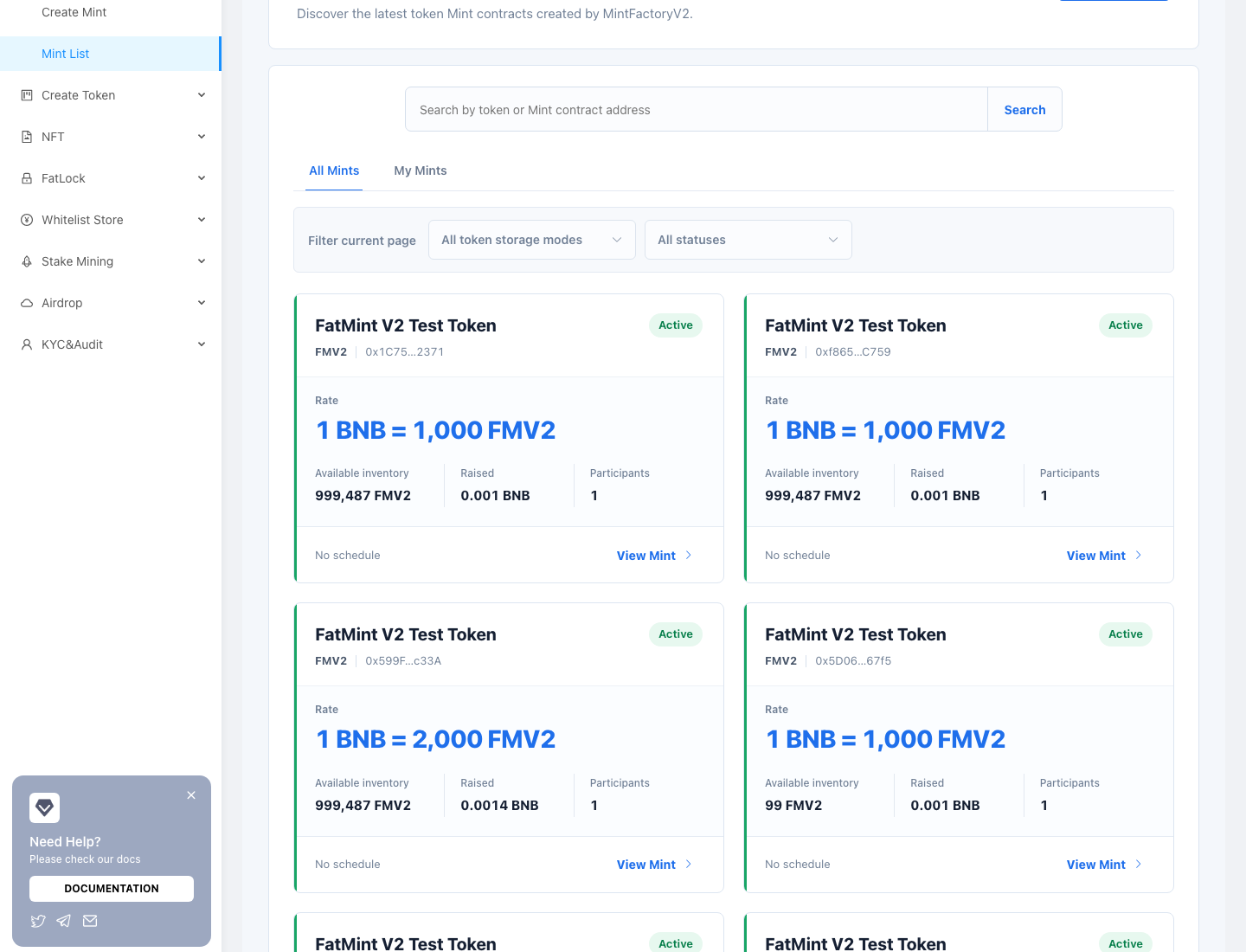
The list provides:
- All Mints / My Mints: the latter shows Mints created by the connected wallet;
- Search by token address or Mint contract address;
- filters for inventory mode and status; and
- cards with rate, available inventory, raised amount, participants, and schedule state.
The list reads the Factory for the selected chain. If a Mint is missing, first verify the header network, then search by its complete Mint address.
2. Verify the detail and token address #
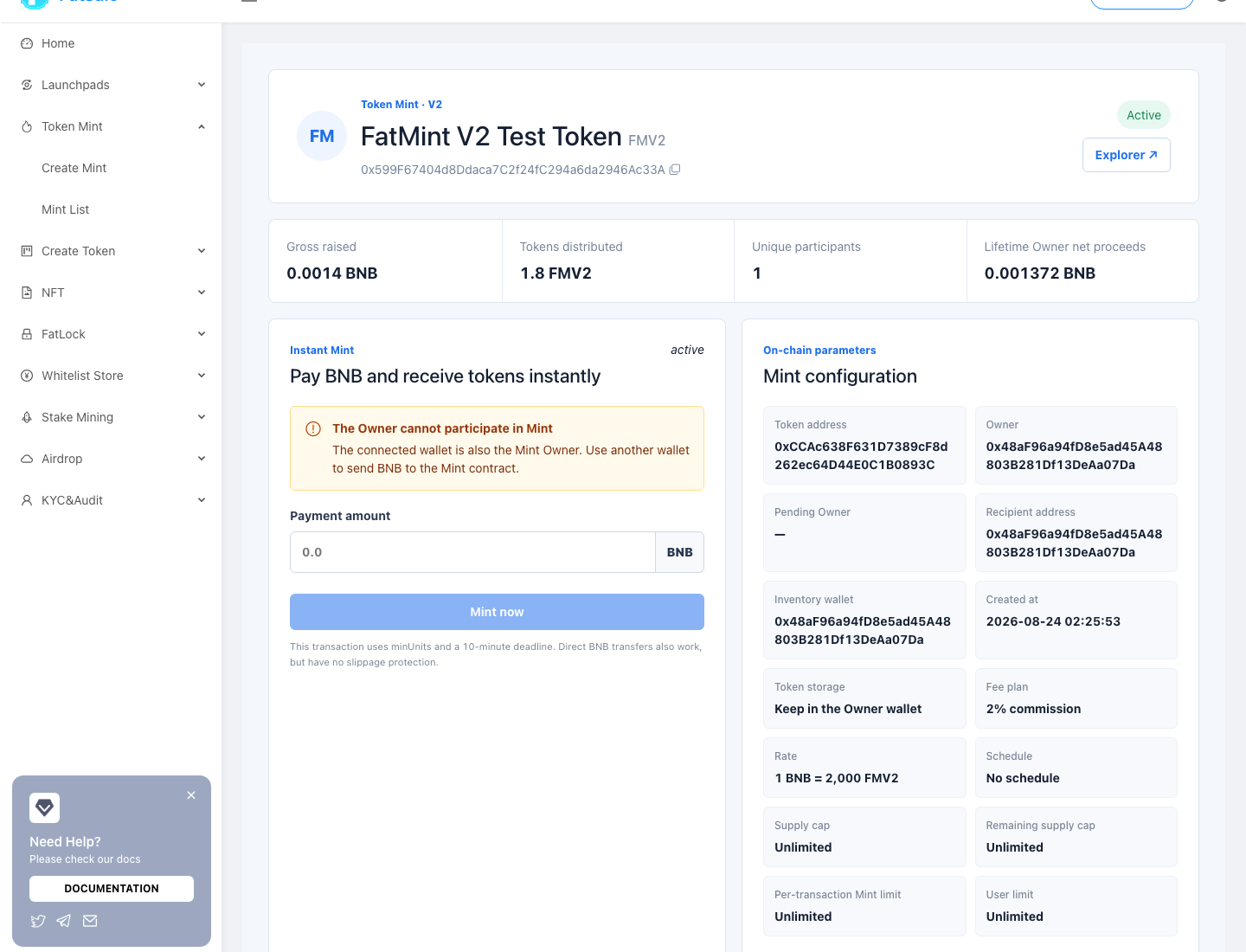
The header shows the Mint address, status, gross raised, distributed tokens, participant count, and lifetime Owner net proceeds. Mint configuration includes:
- token address;
- Owner and Pending Owner;
- proceeds recipient and Inventory Wallet;
- created time, inventory mode, and payment plan; and
- rate, schedule, supply cap, transaction limit, and user limit.
The token address cannot be changed after creation. It is displayed as read-only and has no edit action. To use another token, create a new Mint and publish the new Mint contract as the sole official entry point.
Public parameters are visible to everyone. Only the Owner or fixed Inventory Wallet sees actions allowed by that role.
3. Accounting, inventory, and participants #
- Lifetime Owner net proceeds: total already sent instantly to the proceeds recipient.
- Current inventory: Portal balance, or the usable result of Owner-wallet balance and allowance.
- Participants: native coin spent, tokens received, and Mint count per address.
- Connected-wallet allowance: that wallet’s usage and remaining limit.
If the charging mode is commission, Owner net proceeds equal the amount actually used minus commission. Any excess refunded because of rules is not treated as used payment.
4. Owner administrator panel #
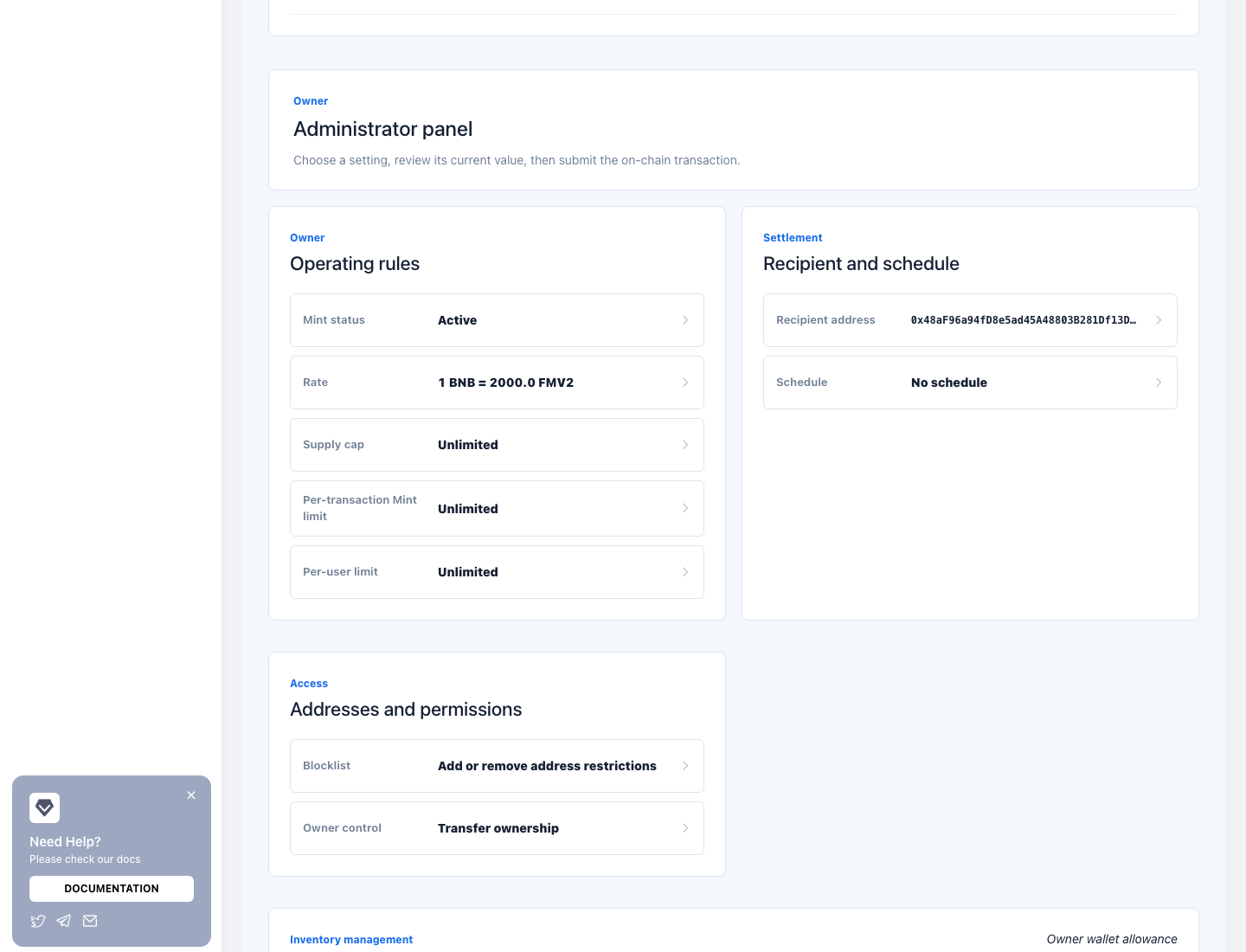
Operating rules #
- pause or resume Mint;
- change the rate;
- set or remove the supply cap, which cannot fall below tokens already distributed;
- set or remove the per-transaction limit; and
- set or remove a per-user spent/received limit.
Before changing a rate or limit, pause the Mint, notify participants, save the transaction hash, and resume only after verification.
Recipient and schedule #
- change the proceeds recipient for future Mint transactions;
- set a start/end schedule or restore no schedule.
Changing the recipient cannot recover funds already sent. Verify the complete new address.
Addresses and permissions #
- add or remove blocklisted addresses, individually or in a batch;
- transfer Owner control with a two-step process: the current Owner initiates and the new address accepts on the same network.
Keep the current Owner wallet until Pending Owner has completed acceptance.
5. Inventory management #
Keep in the Owner wallet #
Tokens remain in the fixed Inventory Wallet. You can set maximum allowance, revoke allowance, or follow the guided workflow to switch to Portal inventory. Available inventory is limited by both balance and allowance; either one can make participant transactions fail. The Inventory Wallet does not automatically change when Owner control is transferred.
Store in the Mint contract #
The Portal holds the tokens. You can add ERC-20 inventory, withdraw remaining inventory when safety conditions are met, or follow the ordered workflow to switch to Owner-wallet inventory.
Pause before withdrawals or custody changes, make sure no public campaign is in progress, and complete prerequisites in the order shown by the page.
6. Participant flow #
A non-Owner wallet can enter payment on the detail page. The UI submits with minUnits and a ten-minute deadline for slippage protection. A direct native-coin transfer to the Mint also works, but has no UI slippage protection.
Before publishing, test with another wallet and verify status, schedule, limits, inventory, token delivery, proceeds, commission, refunds, and participant history. The Owner cannot participate in its own Mint.
7. Submit management transactions safely #
Every setting follows: review current value → enter new value → final confirmation → wallet signature → on-chain receipt. Multi-step actions such as custody changes and ownership transfer skip prerequisites already satisfied on-chain.
For every action:
- verify the network and complete Mint address;
- compare current value with the expected result;
- inspect target contract and value in the wallet prompt;
- send one transaction and wait for confirmation; and
- save its hash and refresh the detail to verify state.
Do not duplicate a transaction simply because a loading indicator remains visible.
8. Routine checklist #
Regularly verify:
- status matches the campaign plan;
- token address matches official communications;
- the proceeds wallet remains controlled;
- rate, caps, and limits are correct;
- inventory and allowance cover demand;
- if the charging mode is commission, the commission and Owner net proceeds reconcile;
- blocklist and permissions have no unexpected changes;
- Owner and Pending Owner are correct; and
- the website and social channels publish one verified Mint link.
9. Troubleshooting #
No administrator panel #
The wallet is not the Owner, or the network/Mint address is wrong. An Inventory Wallet only sees inventory operations and does not inherit all Owner controls.
Why is the token address not editable? #
It is immutable core configuration, preventing the asset from being replaced after users participate. Create a new Mint for a new token.
Participant transaction fails while status is active #
Check inventory, Owner allowance, paused state, schedule, transaction/user limits, supply cap, and blocklist, then inspect the receipt revert reason.
Old funds did not move after changing recipient #
Expected: net proceeds are sent immediately on each Mint. The new recipient affects future transactions only.
New Owner has no permissions #
The new wallet must open the same Mint on the correct network and accept Owner control. The transfer is incomplete until both steps confirm.
Inventory-mode workflow is stuck #
Complete pause, approval, deposit, or withdrawal prerequisites in the displayed order. Satisfied steps are skipped automatically; inspect a failure before retrying.
Page and explorer briefly disagree #
Wait several blocks and refresh. Keep the Mint address and transaction hash. Contact official support only after confirming a successful receipt that remains absent from the UI.